
Request access to a page or take it over
By Theron Gore · Updated October 2026
If someone else is editing a page you need, ask them for it. If you own the page and the editor has gone quiet, you can take it over without asking. Either way, their unpublished work is kept.
Open the page
Open the page. You’ll see Someone else is editing this page.
Click Request access
Click Request access.
Wait for the editor to answer
The editor is asked to hand the page over. They have 30 seconds to answer.
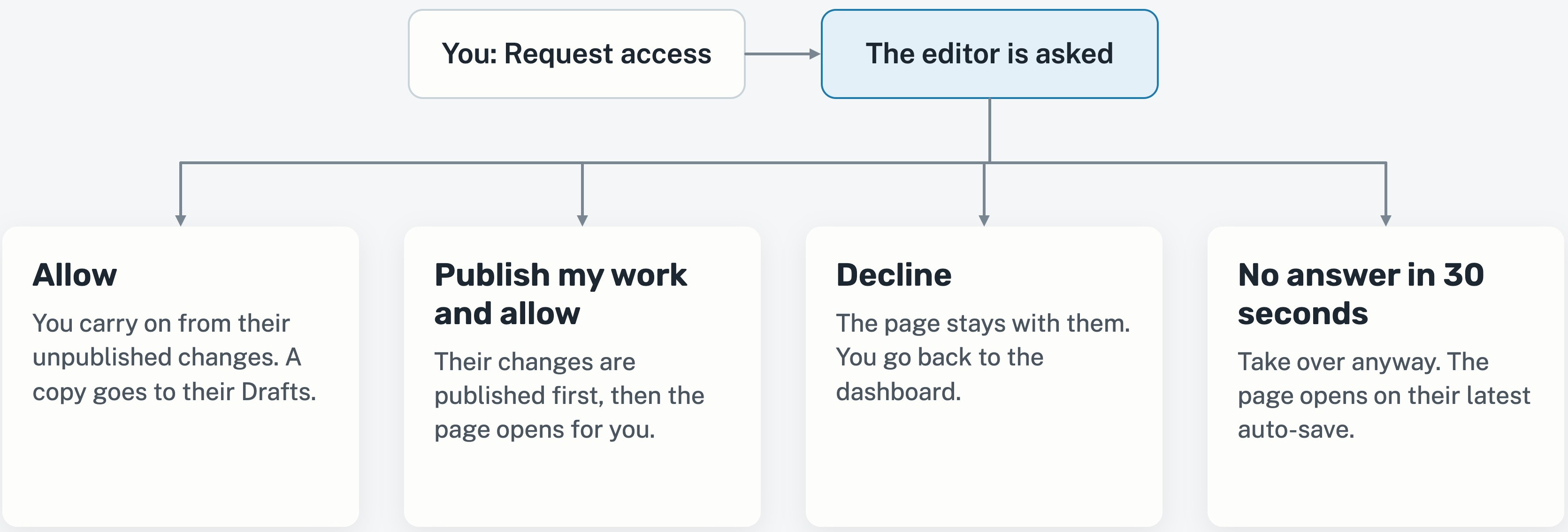
What the editor can choose
| Editor’s answer | What happens for you | What happens to their work |
|---|---|---|
| Allow | The page opens for you, carrying on from their unpublished changes | A copy goes to their Drafts |
| Publish my work and allow | The page opens for you once their changes are published | Published |
| Decline | You go back to your dashboard | The page stays with them |
| No answer within 30 seconds | You can take over anyway. The page opens on their latest auto-save | Saved to their Drafts |
Take over a page you own
If you own the page and its editor has been inactive for 2 minutes, you don’t need to ask.
- Open the page.
- Click Take over.
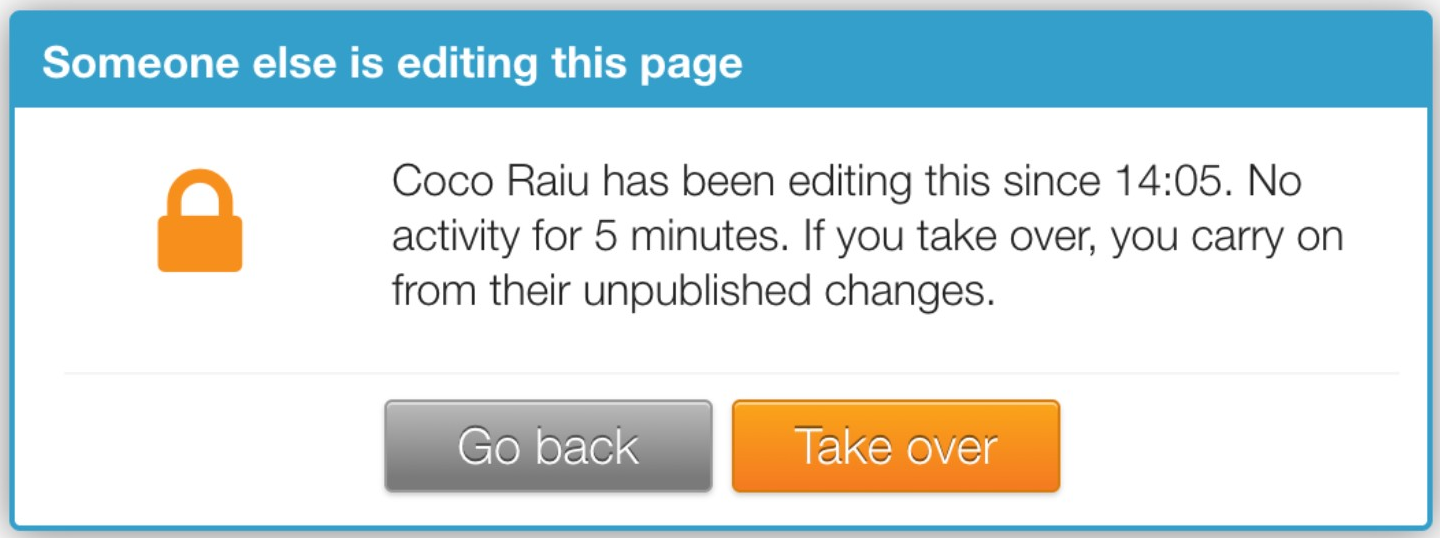
The page opens on the editor’s latest auto-saved changes. The line under Save Draft tells you whose changes they are, so you know where you’re picking up from.
If someone takes the page from you
You’ll see You no longer hold this page, with the name of the person who took over.
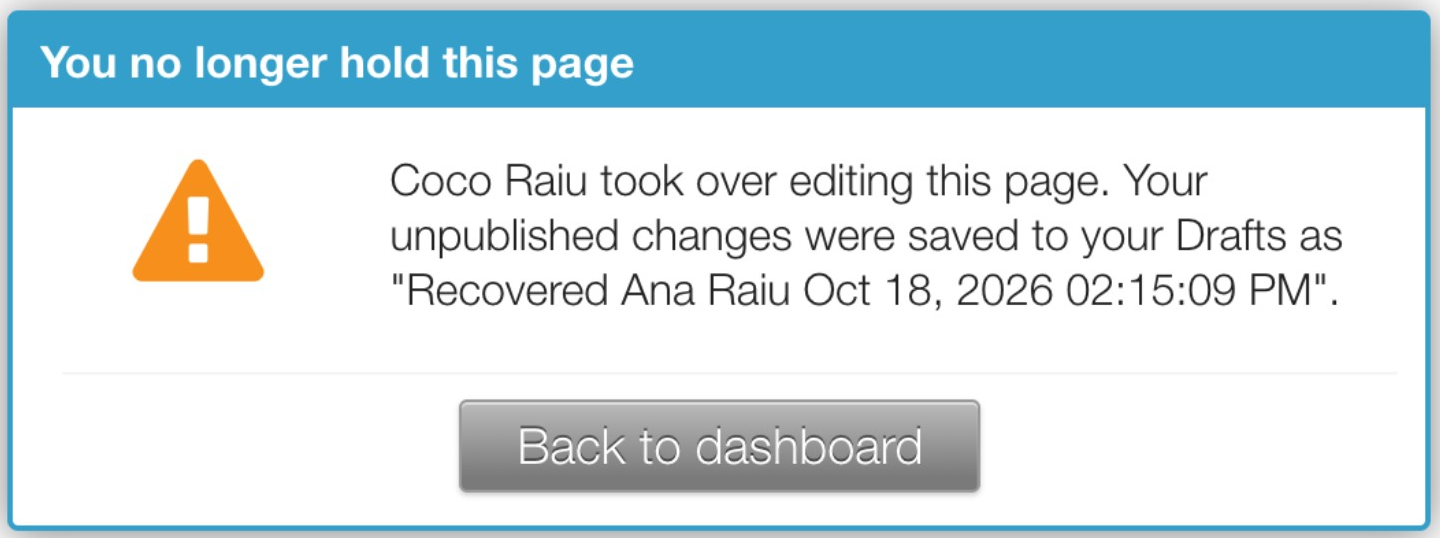
Your unpublished changes are saved to your Drafts, and the dialog names the draft so you can find it. Click Back to dashboard, then open the draft from your Drafts whenever you need it.
Good to know
- For how locks work and when a page is freed, see When someone else is editing a page.
- For how changes are backed up while you edit, see Auto-save: recover unpublished changes.
Did this solve your problem?
Still need help? Email support — 30-minute acknowledgment.
Get in Touch